Showing posts with label 4. Show all posts
Showing posts with label 4. Show all posts
Tuesday, September 17, 2013
Samsung Galaxy Note launched 10 1 Android 4 1 update XXBLJ9
Finally Another Samsung device Receive Android Jelly Bean update. And at this time is the turn for Samsung Galaxy Note 10.1. So For You The Owner Of the one of the samsung flasgship device can update to the latest version of android operating System. Then you can feel the joy of the project butter. Android 4.1 official firmware for galaxy Note 10.1 At this moment only available for German via OTA. Or If you want you can also download the firmware from samfirmware.com then manually flash it. The size of firmware file is 300MB. Android is good
The OTA update is about 300 MB in size, has the version number XXBLJ9, brings with it some new features and especially the accelerated system. New features include pop-play, new gestures, cutting out the function of the Galaxy Note II and new pop-up apps.
New features On Galaxy Note Android 4.1
Following is the new features on Samsung Galaxt Note 10.1 with Android Jelly Bean:- The S-Pen functionality is now the equivalent of the Galaxy Note II
- Multitasking was improved, the size of the windows can be changed.
- The app is now on board Paper Artist (Also available at the grade II)
- New font selectable
- New apps pop (picture with Julian c)
- Create quick command window, new commands
- Faster system
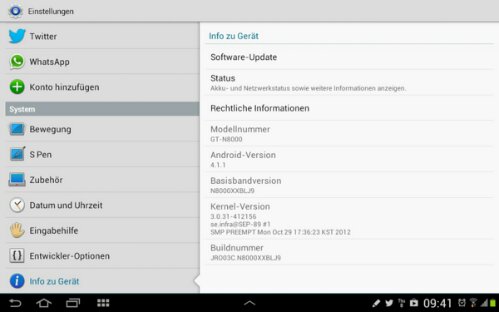
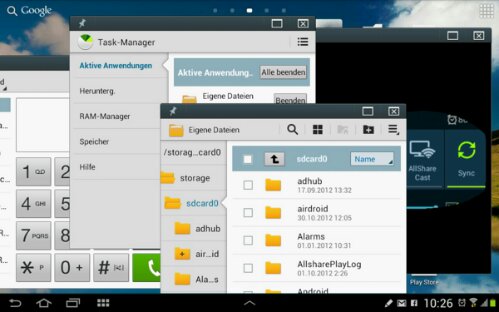
Now, after the Samsung GALAXY Note 10.1 receive Android 4.1 Update, in the coming days is likely the Samsung Galaxy S2 and the Samsung GALAXY Note finally be honored with Android 4.1. For these two models, the update was indeed also scheduled for November. When the time comes then, here you will find out!

Saturday, September 14, 2013
Google Nexus 5 release nears as retailers drop Nexus 4
A Google Nexus 5 release date could be with us in the near future, as the existing Google Nexus 4 is dropped by retailers.
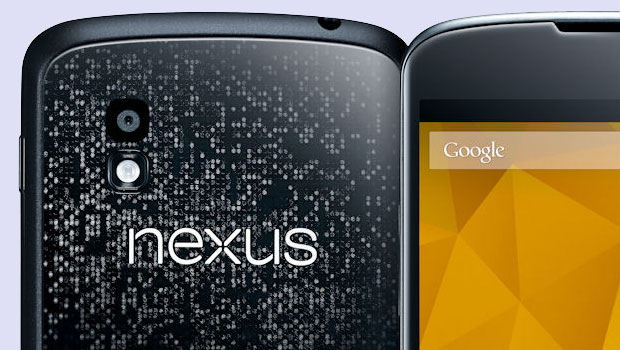
With the white Google Nexus 4 yesterday being confirmed as ‘sold out’ on the Google Play store, the LG manufactured handset has now started to disappear from retailers, suggesting a replacement could be on the way in the form of the much rumoured Google Nexus 5.
One of the first UK retailers to stock the Google Nexus 4 outside of Google’s own retail channels, Carphone Warehouse has today dropped the Android 4.2 launching handset without warning, a potential sign of new things to come from Google’s Mountain View campus. The seeming finality of the retailer’s decision is something of a surprise, with the Samsung Galaxy S4 and HTC One rival removed without trace from the company’s website.
Although far from the only UK retailer to offer the Google Nexus 4, Carphone Warehouse’s decision to drop the Google Nexus 4 poses many questions, with the high-end handset with a wallet-friendly price tag only recently overcoming stock constraints to become a readily available option.
A device widely expected to launch Android 5.0 Key Lime Pie, a selection of Google Nexus 5 rumours have done the rounds in recent months, bringing with them a selection of claimed specs.
According to recent reports, the Google Nexus 5 will pair its new Android OS with a range of high-end, iPhone 5 toppling specs. It has been suggested the currently unconfirmed phone will land with a 5.2-inch OLED display with a 1920 x 1080p Full HD display in tow.
On top of this, further Google Nexus 5 rumours have pointed to a phone with a 2.3GHz quad-core processor, 3GB of RAM and the option of 16GB, 32GB or 64GB storage capacities. The Google Nexus 4 was criticised for only being made available with 8GB or 16GB of internal storage. A 16-megapixel rear-mounted camera and a hearty 3300mAh Lithium-Polymer battery have also been mooted.
Back in May LG, manufacturing partner of the Google Nexus 4 seemed to rule itself out of contention to produce the upcoming Google Nexus 5. Speaking on the possibility of back-to-back Nexus dealings, Kim Wong, Vice President of LG Mobile in Europe, stated: “The Nexus 4 was a great success despite the production problems for us and Google. However, we do not need such a marketing success again.”
Read more »
With the white Google Nexus 4 yesterday being confirmed as ‘sold out’ on the Google Play store, the LG manufactured handset has now started to disappear from retailers, suggesting a replacement could be on the way in the form of the much rumoured Google Nexus 5.
One of the first UK retailers to stock the Google Nexus 4 outside of Google’s own retail channels, Carphone Warehouse has today dropped the Android 4.2 launching handset without warning, a potential sign of new things to come from Google’s Mountain View campus. The seeming finality of the retailer’s decision is something of a surprise, with the Samsung Galaxy S4 and HTC One rival removed without trace from the company’s website.
Although far from the only UK retailer to offer the Google Nexus 4, Carphone Warehouse’s decision to drop the Google Nexus 4 poses many questions, with the high-end handset with a wallet-friendly price tag only recently overcoming stock constraints to become a readily available option.
Google Nexus 5 Rumours
A device widely expected to launch Android 5.0 Key Lime Pie, a selection of Google Nexus 5 rumours have done the rounds in recent months, bringing with them a selection of claimed specs.
According to recent reports, the Google Nexus 5 will pair its new Android OS with a range of high-end, iPhone 5 toppling specs. It has been suggested the currently unconfirmed phone will land with a 5.2-inch OLED display with a 1920 x 1080p Full HD display in tow.
On top of this, further Google Nexus 5 rumours have pointed to a phone with a 2.3GHz quad-core processor, 3GB of RAM and the option of 16GB, 32GB or 64GB storage capacities. The Google Nexus 4 was criticised for only being made available with 8GB or 16GB of internal storage. A 16-megapixel rear-mounted camera and a hearty 3300mAh Lithium-Polymer battery have also been mooted.
Back in May LG, manufacturing partner of the Google Nexus 4 seemed to rule itself out of contention to produce the upcoming Google Nexus 5. Speaking on the possibility of back-to-back Nexus dealings, Kim Wong, Vice President of LG Mobile in Europe, stated: “The Nexus 4 was a great success despite the production problems for us and Google. However, we do not need such a marketing success again.”
Thursday, September 5, 2013
How to Update Galaxy Tab 7 0 Plus P6200 with Android 4 1 2 XXMD6 Jelly Bean Official Firmware

This update brings some new stuff on the Samsung Galaxy Tab Plus 7.0 such as Google Now, Smart Stay, Blocking Mode that let users block any unwanted calls, new Gallery, a redesigned Home Screen launcher, Text-to-speech capability and a new notifications settings.
Firmware details
PDA: P6200XXMD6
CSC: P6200OLBMD5
Version: Android 4.1.2
Built date: April, 2013
Regions: Indonesia, Malaysia, Philippines, Singapore, Vietnam, Thailand
The Galaxy Tab 7.0 Plus users who fail to upgrade their devices with Android 4.1.2 XXMD6 Jelly Bean via official method for being region specific, may follow our step-by-step guide to install the update manually.
Pre-requisites
1. Install USB Driver for Samsung Galaxy Tab 7.0 Plus on the computer.
2. Enable USB Debugging Mode on the phone by navigating to Settings >> Developer Options.
3. Make a backup of all your important data before following the guide.
4. The Galaxy Tab 7.0 Plus should be factory unlocked and not locked to any particular carrier.
5. Ensure the battery of the tablet is charged more than 80 per cent.
6. The Android 4.1.2 XXMD6 Jelly Bean firmware is compatible only with Samsung Galaxy Tab 7.0 Plus P6200. Applying this on any incorrect variant will brick the device. Verify the model number of the Galaxy Tab 7.0 Plus by navigating to Settings >> About Phone.
File Required
1. Android 4.1.2 XXMD6 Jelly Bean Firmware for Galaxy Tab 7.0 Plus P6200
2. Odin 3.07
Steps to Update Galaxy Tab 7.0 Plus P6200 with Android 4.1.2 XXMD6 Jelly Bean Firmware
Step 1: Extract Firmware zip file that you downloaded already from above link, you will get a .tar.md5 file and some other files.
Step 2: Extract Odin zip file and you will get Odin3 v3.07.exe along with few other files.
Step 3: Power off your tablet. Wait 5-6 seconds for vibration to confirm complete switch off.
Step 4: Boot the device into Download Mode by pressing and holding Volume Down and Power buttons together. A warning screen will arrive, then press Volume Up button to enter into Download Mode.
Step 5: Run Odin on the computer as an Administrator.
Step 6: Connect the Galaxy Tab 7.0 Plus to the computer using USB cable while it is in the Download Mode. Wait until Odin detects the device. When the device is connected successfully, the ID: COM box will turn yellow with the COM port number. Additionally, the successful connected will be indicated by a message saying Added. If Odin fails to detect the device then re-install USB deriver.
Step 7: Choose the following files in Odin from extracted P6200XXMD6 firmware folder by using respective checkboxes:
- Select the PDA checkbox, and choose the file named .tar or .md5.
- Click the Phone checkbox, and choose the file with modem in its name (ignore if there is no such file)
- Click the CSC checkbox, and select the file with csc in its name (ignore if such file is missing)
- Choose the PIT checkbox, and choose the .pit file. Use only the file obtained during extracting in step 1 above, otherwise ignore it.
Step 8: In Odin, enable Auto Reboot and F. Reset Time checkboxes. Also, ensure the Re-Partition checkbox is chosen only if a .pit file was chosen in the previous step.
Step 9: Verify everything suggested in Step 7 and Step 8 is done correctly. Then hit the START button to begin the flashing process.
Step 10: Once flashing completed, your tablet will restart and soon you will see a PASS message with green background in the left-most box at the very top of the Odin. You can now unplug the USB cable to disconnect your device from computer.
Samsung Galaxy Tab 7.0 Plus P6200 should be now updated with official Android 4.1.2 XXMD6 Jelly Bean. Head over to Settings>> About Phone to verify the software version running on the device.
Note: If Galaxy Tab 7.0 Plus P6200 stuck at booting animation after Step 10 then go to recovery mode (press and hold the Volume Up and Power buttons together) and perform Wipe data/Factory Reset and Wipe Cache Partition task before selecting reboot system now function. In recovery mode use Volume keys to navigate between options and Power key to select the option. Please note, performing wiping task will erase your device internal memory data and not external SD card data.
Click here to know How to Root Galaxy Tab 7.0 Plus P6200 running on Android 4.1.2 XXMD6 Jelly Bean firmware.
Step 9: Verify everything suggested in Step 7 and Step 8 is done correctly. Then hit the START button to begin the flashing process.
Step 10: Once flashing completed, your tablet will restart and soon you will see a PASS message with green background in the left-most box at the very top of the Odin. You can now unplug the USB cable to disconnect your device from computer.
Samsung Galaxy Tab 7.0 Plus P6200 should be now updated with official Android 4.1.2 XXMD6 Jelly Bean. Head over to Settings>> About Phone to verify the software version running on the device.
Note: If Galaxy Tab 7.0 Plus P6200 stuck at booting animation after Step 10 then go to recovery mode (press and hold the Volume Up and Power buttons together) and perform Wipe data/Factory Reset and Wipe Cache Partition task before selecting reboot system now function. In recovery mode use Volume keys to navigate between options and Power key to select the option. Please note, performing wiping task will erase your device internal memory data and not external SD card data.
Click here to know How to Root Galaxy Tab 7.0 Plus P6200 running on Android 4.1.2 XXMD6 Jelly Bean firmware.
Friday, August 30, 2013
How to Root Galaxy Mega 6 3 I9200 I9205 on Android 4 2 2 Jelly Bean Firmware

Followed by the market rollout, XDA-Developers member VCore has released root method for both I9200 and I9205 version of Galaxy Mega 6.3.
Samsung Galaxy Mega 6.3 users who wish to root their devices, may follow our step-by-step guide.
Disclaimer: Rooting voids the warranty of your device. We and the developer of this rooting procedures shall not be held responsible if any undesirable outcomes may happen to your device. use of this root guide is solely at your own risk!
Pre-requisites
1. Install USB Driver for Samsung Galaxy Mega 6.3 on the computer.
2. Enable USB Debugging Mode on the phone by navigating to Settings >> Developer Options.
3. Make a backup of all your important data before following the guide.
4. The Galaxy Mega 6.3 should be factory unlocked and not locked to any particular carrier.
5. Ensure the battery of the phone is charged more than 80 per cent.
6. The Root Package file works only on Samsung Galaxy Mega 6.3. Applying these to any incorrect variant might brick the device. Verify the model number of the Galaxy Mega 6.3 by navigating to Settings >> About Phone.
File Required
1. Root Package for Galaxy Mega 6.3 (vcoreroot-v2.tar)
2. Odin 3.07
Steps to Root Galaxy Mega 6.3 Running on Android 4.2.2 Jelly Bean Firmware
Step 1: Extract Odin 3.07 file using winrar/7zip/winzip or any other extracting tool.
Step 2: Switch off the Galaxy Mega 6.3. Then boot the device into Download Mode by pressing and holding Volume Down, Home and Power buttons together until a construction Android robot icon with a warning triangle appears on screen. Now press the Volume Up button to enter Download Mode.
Step 3: Launch Odin on the computer as an Administrator.
Step 4: Connect the Galaxy Mega 6.3 to the computer using USB cable while it is in the Download Mode. Wait until Odin detects the device. When the device is connected successfully, the ID: COM box will turn blue with the COM port number. Additionally, the successful connected will be indicated by a message saying Added.
Note: If the Added message does not appear, then try re-install USB drivers or changing the port on the computer.
Step 5: In Odin, click the PDA button and select the vcoreroot-v2.tar file.
Step 6: Verify that Auto Reboot and F.Reset Time checkboxes are selected in Odin. Also, ensure the Re-Partition option in Odin is not selected.
Step 7: Double-check and click Start in Odin. The installation process will now begin.
Step 8: Once the installation process is completed, your phone will restart and soon you will see a PASS message with green background in the left-most box at the very top of the Odin. You can now unplug the USB cable to disconnect your device from computer.
Samsung Galaxy Mega 6.3 running on Android 4.2.2 Jelly Bean firmware is now rooted successfully. You can now install any app that requires root permission. Verify the root status of the device by downloading Root Checker app from Google Play Store.
Thanks to all fellas at XDA who first tried out this rooting technique. This method was originally posted via XDA-Developers original thread.
Thursday, August 29, 2013
Android 4 1 Update For Samsung Galaxy Tab 2 7 0 Release
There is a new android update for another Samsung Device. Today samsung has started the release of android 4.1 update for samsung Galaxy tab 2 7.0 (GT-P3100) Model. So For you that maybe expected the android 4.1.2 update for galaxy s3 or 4.1 for galaxy s2 dont be disappointed because samsung will release those update soon. just be patient, and stay up to date with this blog to get the update news. Ok now lets back to the main topic, i will discuss more about galaxy tab 2 GT-P3100 update to android 4.1.1.Android is good
The Samsung Galaxy Tab 2 7.0 is an entry-level Android - Tablet. However, the tablet plays hardly in any role, and is also less and less attention from its manufacturer. The reason is quite simple, the overwhelming competition from the Nexus 7 and from their own home through the 10th Nexus And a different model from the South Koreans would make this difficult to create curiosity, the Samsung GALAXY Note 10.1.
Unfortunately The Samsung GALAXY Tab 2 7.0 Android 4.1.1 Update time is only for Vodafone branded model, this update starts today in Germany, Italy, Greece, Spain, Romania and Slovenia. Other countries will follow. However, we know from experience that the "free" Android tablets will also soon receive the update.

Whether this tablet will come but also receive the update to Android 4.2 or not, i still doubt for it. But with Samsung, you never know.
Wednesday, August 28, 2013
Galaxy Note New Features On Android 4 1
During the Android 4.1 update for the Samsung Galaxy S III is distributed in Poland and in Korea, the rest of the world is still waiting for the android 4.1 udpate for Galaxy Note. Starting today is Swedens turn for s3 update. But with the Samsung Galaxy note the update for android 4.1 seems to be rather slow
You can read my previously post about galaxy note android 4.1 update news

the Vietnamese forum Tinhte.vn now get the update to Android 4.1 for the Samsung Galaxy Note. Sure, there might be a (good) fake, but is Tinhte.vn in the past very often noticed the leaks of unreleased devices. and many of the leaks is really proven and become true. In this respect should agree the information and the Samsung Galaxy Note GT-N7000 gets shipped with many new features:

Although it greatly surprised that Samsung even supposed to bring the Galaxy Note II Background to the first Galaxy Note, the lockscreen is greatly expanded. The most interesting thing here: Popup note will also enable the lockscreen with writing notes.

Also, the Galaxy Note will get Android 4.1 later with two home screen modes: Once the "classic" Basic mode and the Easy mode, which is to facilitate the operation.
 Application Drawer 3 showing the same as the SIII & Note II: the grid to sort by the users themselves, in a grid in alphabetical order, and the list in alphabetical order. Shortcut of the application can be hidden but not removed completely. Also menu allows quick access to the Play Store to find support.


The motion detection function (Motion):
Direct Call function (call directly when putting up the ear while looking at your contacts, messages, etc.), Smart Alert (Notify missed events just hold the camera up), Double tap to top (double tap to the top of the machine to move to the top of the list), Palm touch to mute / pause (laid hand on the screen to mute, pause the movie) ... was added. These functions are installed in the menu Settings-> Motion

 Firstly, the video player is floating in the known pop-play in size to the other and in my opinion even more interesting, it seems to be a pop-up browser. Open the browser in a second small window seems permanently to have extremely interesting.

Tizen and HTML5 based, faster and fancier - and actually the Galaxy Note II reserved. Super!

You can read my previously post about galaxy note android 4.1 update news
the Vietnamese forum Tinhte.vn now get the update to Android 4.1 for the Samsung Galaxy Note. Sure, there might be a (good) fake, but is Tinhte.vn in the past very often noticed the leaks of unreleased devices. and many of the leaks is really proven and become true. In this respect should agree the information and the Samsung Galaxy Note GT-N7000 gets shipped with many new features:
Galaxy Note Android 4.1 new Features
- The system is clearly superfluous, one is almost on a level with the Samsung Galaxy II
- Large parts of the UX Nature of Galaxy S III and grade II to find their way on the Galaxy Note
- Many functions that were first shown at the Galaxy S III coming to the Galaxy Note: Stay Smart, Direct Call, Smart Alert ...
- The photo gallery of the Galaxy Note II comes on the first Galaxy Note
- Many additional features of the S-Pen
- There are also supplied directly screenshots and details of the alleged JellyBean updates to the Galaxy Note. (Click to enlarge)
Galaxy Note New Lockscreen
Although it greatly surprised that Samsung even supposed to bring the Galaxy Note II Background to the first Galaxy Note, the lockscreen is greatly expanded. The most interesting thing here: Popup note will also enable the lockscreen with writing notes.
New Homescreen
Also, the Galaxy Note will get Android 4.1 later with two home screen modes: Once the "classic" Basic mode and the Easy mode, which is to facilitate the operation.
Galaxy Note Appdrawer
Notification bar and Smartstay
- Notification Bar is also similar update on the SIII and Note II with a variety of settings can be turned off directly in the Notification bar. Notifications in the Notification bar is also flexible and interactive than ICS.
- Smart Stay (Tracking the users eye to hold the screen does not turn off when the user is looking at the screen). This function is can be set in the menu Settings -> Display. In this menu can also enable the automatic changing screen colors match the image display to save battery. Android is good
Movement control and blocking mode
The motion detection function (Motion):
Direct Call function (call directly when putting up the ear while looking at your contacts, messages, etc.), Smart Alert (Notify missed events just hold the camera up), Double tap to top (double tap to the top of the machine to move to the top of the list), Palm touch to mute / pause (laid hand on the screen to mute, pause the movie) ... was added. These functions are installed in the menu Settings-> Motion
call options, volume, and Internet telephony
Pop-play and browser popup
The new Gallery of the Samsung Galaxy Note II
Tizen and HTML5 based, faster and fancier - and actually the Galaxy Note II reserved. Super!
S Note Feature on Galaxy Note
- S Memo was officially put into the museum. Still on the screen as you click the icon, just get message "This application has all its life cycle and to introduce alternative application is S Note".
- S Note has been upgraded quite a lot. Now you can record the pen strokes for later playback as animation.
- Allows applications to insert symbols, clip art comes to makes notes easier and more efficient.
- Function: In this upgrade, just put pen to close the screen with the pen icon appears on the screen immediately. Previously this effect turned off in S-pen setting but now the default is always on.
- It will also be possible to record his drawing as a video.
CONCLUSION: For a Fake this full story is too complicated and too good. In the right places to find the information provider. Unfortunately, the source changed the name of the software and the ROM is not yet available for download, you will have to be patient. But it is absolutely amazing how the Samsung Galaxy Note and updated here to update brings - more than many would have ever expected.
Monday, August 26, 2013
How to Root Galaxy Tab 7 0 Plus P6200 on Android 4 1 2 XXMC3 Jelly Bean Firmware
Samsung Galaxy Tab 7.0 Plus P6200 users who have already updated their devices with Android 4.1.2 XXMC3 Jelly Bean firmware, may root their devices using the tutorial below.
This tutorial uses CF-Auto-Root file released by recognised XDA Developers, Chainfire. The CF-Auto-Root file allowing Galaxy Tab 7.0 Plus users to root their devices easily.
Disclaimer: Rooting voids the warranty of your device. We and the developer of this rooting procedures shall not be held responsible if any undesirable outcomes may happen to your device. use of this root guide is solely at your own risk!
Pre-Requisites
1) Install USB Driver for Samsung Galaxy Tab 7.0 Plus on your computer.
2) Enable USB Debugging Mode. [Press Menu >> Settings >> Applications. From there navigate and tap on Development option and ensure the USB Debugging is turned on.]
3) Make a backup of all your important data before following the guide.
4) Ensure the battery of the tablet is charged more than 80 per cent.
5) The Recovery file and the Superuser files used for rooting are compatible only with the Samsung Galaxy Tab 7.0 Plus P6200 running on Android 4.1.2 XXMC3 Jelly Bean.
Steps to Install CWM Recovery on Samsung Galaxy Tab 7.0 Plus P6200
Step 1: Download Recovery.tar.rar file for Galaxy Tab 7.0 Plus to the computer and extract using winrar/7zip/winzip or any other extracting tool
Step 2: Download Superuser-3.1.3-arm-signed.zip file and copy to SD card of tablet
Step 3: Download Odin 3.07 and extract the zip file
Step 4: Switch off the tablet and place it into Download Mode. To do so press and hold Volume Down and Power buttons together. A warning screen will arrive, then press Volume Up button to enter into Download Mode
Step 5: Run Odin on your computer
Step 6: Connect the tablet to the computer using the USB cable while the device is in the Download Mode. A message saying Added will arrive under Odins message box in the bottom left. You will also get to see COM port with a number in Yellow when the tablet is connected to the computer successfully
Step 7: In Odin, click the PDA and select the recovery.tar.md5 file
Step 8: Ensure the Re-Partition option in Odin is not selected
Step 9: Double-check and click Start in Odin. The installation process will now begin
Step 10: Once installation is completed, the tablet will reboot automatically. After the home screen appears, unplug USB cable from the tablet to disconnect it from the computer
Steps to root Galaxy Tab 7.0 Plus by Installing SuperSU via CWM Recovery
Step 11: Reboot tablet into Recovery mode by pressing and holding Volume Up and Power buttons together.
Step 12: Once device is in Recovery mode, use Volume to scroll to Apply Update Zip from internal storage
Step 13: Now select install zip from sdcard, select choose zip from sdcard and then navigate to the Superuser-3.1.3-arm-signed.zip. Select and confirm installation by selecting Yes
Step 14: Once installation process is completed, return to main recovery menu and select reboot system now to reboot tablet
The Samsung Galaxy Tab 7.0 Plus P6200, running official Android 4.1.2 XXMC3 Jelly Bean, is now rooted successfully. Open the app drawer of the Galaxy tablet and look for an app called superuser.
Thanks to all fellas at XDA who first tried out this rooting technique. This root method was originally posted via XDA-Developers original thread.
Sunday, August 25, 2013
How to Update Galaxy Note 8 0 Wi Fi N5110 with Android 4 1 2 UEEMF1 Jelly Bean Official Firmware

Firmware details
PDA: N5110UEEMF1
CSC: N5110XAREMF1
MODEM: N5110UEEMF1
Version: Android 4.1.2
Built date: Jun 04, 2013
Regions: United States
Samsung Galaxy Note 8.0 (Wi-Fi) N5110 users who missed the OTA update notification or unable to access the update over Samsung KIES, may follow our step-by-step guide to install the update manually.
Pre-requisites
1. Install USB Driver for Samsung Galaxy Note 8.0 (Wi-Fi) on the computer.
2. Enable USB Debugging Mode on the phone by navigating to Settings >> Developer Options.
3. Make a backup of all your important data before following the guide.
4. Ensure the battery of the phone is charged more than 80 per cent.
5. The Android 4.1.2 UEEMF1 Jelly Bean firmware is compatible only with Samsung Galaxy Note 8.0 (Wi-Fi) N5110. Applying this to any incorrect variant might brick the device. Verify the model number of the Galaxy Note 8.0 (Wi-Fi) by navigating to Settings >> About Phone.
File Required
1. Android 4.1.2 UEEMF1 Jelly Bean Firmware for Galaxy Note 8.0 (Wi-Fi) N5110
2. Odin 3.07
Steps to Update Galaxy Note 8.0 (Wi-Fi) N5110 with Android 4.1.2 UEEMF1 Jelly Bean Firmware
Step 1: Extract Firmware zip file that you downloaded already from above link using winrar/7zip/winzip or any other extracting tool, you will get a .tar.md5 file and some other files.
Step 2: Extract Odin zip file and you will get Odin3 v3.07.exe along with few other files.
Step 3: Power off your phone. Wait 5-6 seconds for vibration to confirm complete switch off.
Step 4: Boot the device into Download Mode by pressing and holding Volume Down + Home buttons together and then press the Power button until the device turns on. Now press the Volume Up button to enter Download Mode.
Step 5: Run Odin on the computer as an Administrator.
Step 6: Connect the Galaxy Note 8.0 (Wi-Fi) to the computer using USB cable while it is in the Download Mode. Wait until Odin detects the device. When the device is connected successfully, the ID: COM box will turn yellow with the COM port number. Additionally, the successful connected will be indicated by a message saying Added. If Odin fails to detect the device then re-install USB driver.
Step 7: Choose the following files in Odin from extracted N5110UEEMF1 firmware folder by using respective checkboxes:
- Select the PDA checkbox, and choose the file named .tar or .md5.
- Click the Phone checkbox, and choose the file with modem in its name (ignore if there is no such file)
- Click the CSC checkbox, and select the file with csc in its name (ignore if such file is missing)
- Choose the PIT checkbox, and choose the .pit file. Use only the file obtained during extracting in step 1 above, otherwise ignore it.
Step 8: In Odin, enable Auto Reboot and F. Reset Time checkboxes. Also, ensure the Re-Partition checkbox is chosen only if a .pit file was chosen in the previous step.
Step 9: Verify everything suggested in Step 7 and Step 8 is done correctly. Then hit the START button to begin the installation process.
Step 10: Once the installation process is completed, your phone will restart and soon you will see a PASS message with green background in the left-most box at the very top of the Odin. You can now unplug the USB cable to disconnect your device from computer.
Samsung Galaxy Note 8.0 (Wi-Fi) N5110 should be now updated with official Android 4.1.2 UEEMF1 Jelly Bean firmware. Head over to Settings >> About Phone to verify the software version running on the device.
Note: If Galaxy Note 8.0 (Wi-Fi) N5110 stuck at booting animation after Step 10 then go to recovery mode (press and hold the Volume Up, Home and Power buttons together) and perform Wipe data/Factory Reset and Wipe Cache Partition task before selecting reboot system now function. In recovery mode use Volume keys to navigate between options and Power key to select the option. Please note, performing wiping task will erase your device internal memory data and not external SD card data.
Click here to know How to Root Galaxy Note 8.0 (Wi-Fi) N5110 running on Android 4.1.2 UEEMF1 Jelly Bean firmware.
Step 9: Verify everything suggested in Step 7 and Step 8 is done correctly. Then hit the START button to begin the installation process.
Step 10: Once the installation process is completed, your phone will restart and soon you will see a PASS message with green background in the left-most box at the very top of the Odin. You can now unplug the USB cable to disconnect your device from computer.
Samsung Galaxy Note 8.0 (Wi-Fi) N5110 should be now updated with official Android 4.1.2 UEEMF1 Jelly Bean firmware. Head over to Settings >> About Phone to verify the software version running on the device.
Note: If Galaxy Note 8.0 (Wi-Fi) N5110 stuck at booting animation after Step 10 then go to recovery mode (press and hold the Volume Up, Home and Power buttons together) and perform Wipe data/Factory Reset and Wipe Cache Partition task before selecting reboot system now function. In recovery mode use Volume keys to navigate between options and Power key to select the option. Please note, performing wiping task will erase your device internal memory data and not external SD card data.
Click here to know How to Root Galaxy Note 8.0 (Wi-Fi) N5110 running on Android 4.1.2 UEEMF1 Jelly Bean firmware.
Friday, July 26, 2013
Apple iPad 4 Tablet Review and With New Features

Apple iPad 4 - New iPad or often called the iPad 3 recently released by Apple from now and Stop sales iPad 3, because Apple has issued a new version with the name iPad with Retina Display and is also called the iPad 4. Apples move certainly surprised many people because of new gadgets released in the market and are replaced with new ones. and what are renewed in this 4 iPad?
the new features found on the new Apple iPad 4:
processor:
iPad 4 processor uses higher when compared to the iPad 3 that A6X, when the iPad 3 using A5X. Apple claims A6X faster performance than doubled A5X although both dual core, the GPU (Graphics Processing Unit) quad core. In addition, they also use design SoC (System-on-a-Chip), which combines the CPU and GPU on the same die.
Connector:
As we know that for Apple mobile devices now have a new standard dock connector, which has 8 pins, the same as used in the iPhone 5 and iPod touch generation 5. So conektor iPad 4 also uses this type. Unlike the iPad 3 is still using size 30 pin dock connector.
Expanding LTE network:
Due to the many comments that go for iPad 3 only supports 4G LTE network in Canada and the United States. Apple seems to not want to let prospective buyers next iPad. Ipad 4 now supports LTE 4G network that this tablet can be used in many countries.
Apple iPad 4 Tablet Review, iPad 4s interesting is not it, are you waiting for, get buy latest apple gadget on the market :).
the new features found on the new Apple iPad 4:
processor:
iPad 4 processor uses higher when compared to the iPad 3 that A6X, when the iPad 3 using A5X. Apple claims A6X faster performance than doubled A5X although both dual core, the GPU (Graphics Processing Unit) quad core. In addition, they also use design SoC (System-on-a-Chip), which combines the CPU and GPU on the same die.
Connector:
As we know that for Apple mobile devices now have a new standard dock connector, which has 8 pins, the same as used in the iPhone 5 and iPod touch generation 5. So conektor iPad 4 also uses this type. Unlike the iPad 3 is still using size 30 pin dock connector.
Expanding LTE network:
Due to the many comments that go for iPad 3 only supports 4G LTE network in Canada and the United States. Apple seems to not want to let prospective buyers next iPad. Ipad 4 now supports LTE 4G network that this tablet can be used in many countries.
Apple iPad 4 Tablet Review, iPad 4s interesting is not it, are you waiting for, get buy latest apple gadget on the market :).
Subscribe to:
Posts (Atom)