Showing posts with label with. Show all posts
Showing posts with label with. Show all posts
Thursday, September 5, 2013
How to Update Galaxy Tab 7 0 Plus P6200 with Android 4 1 2 XXMD6 Jelly Bean Official Firmware

This update brings some new stuff on the Samsung Galaxy Tab Plus 7.0 such as Google Now, Smart Stay, Blocking Mode that let users block any unwanted calls, new Gallery, a redesigned Home Screen launcher, Text-to-speech capability and a new notifications settings.
Firmware details
PDA: P6200XXMD6
CSC: P6200OLBMD5
Version: Android 4.1.2
Built date: April, 2013
Regions: Indonesia, Malaysia, Philippines, Singapore, Vietnam, Thailand
The Galaxy Tab 7.0 Plus users who fail to upgrade their devices with Android 4.1.2 XXMD6 Jelly Bean via official method for being region specific, may follow our step-by-step guide to install the update manually.
Pre-requisites
1. Install USB Driver for Samsung Galaxy Tab 7.0 Plus on the computer.
2. Enable USB Debugging Mode on the phone by navigating to Settings >> Developer Options.
3. Make a backup of all your important data before following the guide.
4. The Galaxy Tab 7.0 Plus should be factory unlocked and not locked to any particular carrier.
5. Ensure the battery of the tablet is charged more than 80 per cent.
6. The Android 4.1.2 XXMD6 Jelly Bean firmware is compatible only with Samsung Galaxy Tab 7.0 Plus P6200. Applying this on any incorrect variant will brick the device. Verify the model number of the Galaxy Tab 7.0 Plus by navigating to Settings >> About Phone.
File Required
1. Android 4.1.2 XXMD6 Jelly Bean Firmware for Galaxy Tab 7.0 Plus P6200
2. Odin 3.07
Steps to Update Galaxy Tab 7.0 Plus P6200 with Android 4.1.2 XXMD6 Jelly Bean Firmware
Step 1: Extract Firmware zip file that you downloaded already from above link, you will get a .tar.md5 file and some other files.
Step 2: Extract Odin zip file and you will get Odin3 v3.07.exe along with few other files.
Step 3: Power off your tablet. Wait 5-6 seconds for vibration to confirm complete switch off.
Step 4: Boot the device into Download Mode by pressing and holding Volume Down and Power buttons together. A warning screen will arrive, then press Volume Up button to enter into Download Mode.
Step 5: Run Odin on the computer as an Administrator.
Step 6: Connect the Galaxy Tab 7.0 Plus to the computer using USB cable while it is in the Download Mode. Wait until Odin detects the device. When the device is connected successfully, the ID: COM box will turn yellow with the COM port number. Additionally, the successful connected will be indicated by a message saying Added. If Odin fails to detect the device then re-install USB deriver.
Step 7: Choose the following files in Odin from extracted P6200XXMD6 firmware folder by using respective checkboxes:
- Select the PDA checkbox, and choose the file named .tar or .md5.
- Click the Phone checkbox, and choose the file with modem in its name (ignore if there is no such file)
- Click the CSC checkbox, and select the file with csc in its name (ignore if such file is missing)
- Choose the PIT checkbox, and choose the .pit file. Use only the file obtained during extracting in step 1 above, otherwise ignore it.
Step 8: In Odin, enable Auto Reboot and F. Reset Time checkboxes. Also, ensure the Re-Partition checkbox is chosen only if a .pit file was chosen in the previous step.
Step 9: Verify everything suggested in Step 7 and Step 8 is done correctly. Then hit the START button to begin the flashing process.
Step 10: Once flashing completed, your tablet will restart and soon you will see a PASS message with green background in the left-most box at the very top of the Odin. You can now unplug the USB cable to disconnect your device from computer.
Samsung Galaxy Tab 7.0 Plus P6200 should be now updated with official Android 4.1.2 XXMD6 Jelly Bean. Head over to Settings>> About Phone to verify the software version running on the device.
Note: If Galaxy Tab 7.0 Plus P6200 stuck at booting animation after Step 10 then go to recovery mode (press and hold the Volume Up and Power buttons together) and perform Wipe data/Factory Reset and Wipe Cache Partition task before selecting reboot system now function. In recovery mode use Volume keys to navigate between options and Power key to select the option. Please note, performing wiping task will erase your device internal memory data and not external SD card data.
Click here to know How to Root Galaxy Tab 7.0 Plus P6200 running on Android 4.1.2 XXMD6 Jelly Bean firmware.
Step 9: Verify everything suggested in Step 7 and Step 8 is done correctly. Then hit the START button to begin the flashing process.
Step 10: Once flashing completed, your tablet will restart and soon you will see a PASS message with green background in the left-most box at the very top of the Odin. You can now unplug the USB cable to disconnect your device from computer.
Samsung Galaxy Tab 7.0 Plus P6200 should be now updated with official Android 4.1.2 XXMD6 Jelly Bean. Head over to Settings>> About Phone to verify the software version running on the device.
Note: If Galaxy Tab 7.0 Plus P6200 stuck at booting animation after Step 10 then go to recovery mode (press and hold the Volume Up and Power buttons together) and perform Wipe data/Factory Reset and Wipe Cache Partition task before selecting reboot system now function. In recovery mode use Volume keys to navigate between options and Power key to select the option. Please note, performing wiping task will erase your device internal memory data and not external SD card data.
Click here to know How to Root Galaxy Tab 7.0 Plus P6200 running on Android 4.1.2 XXMD6 Jelly Bean firmware.

Sunday, August 25, 2013
How to Update Galaxy Note 8 0 Wi Fi N5110 with Android 4 1 2 UEEMF1 Jelly Bean Official Firmware

Firmware details
PDA: N5110UEEMF1
CSC: N5110XAREMF1
MODEM: N5110UEEMF1
Version: Android 4.1.2
Built date: Jun 04, 2013
Regions: United States
Samsung Galaxy Note 8.0 (Wi-Fi) N5110 users who missed the OTA update notification or unable to access the update over Samsung KIES, may follow our step-by-step guide to install the update manually.
Pre-requisites
1. Install USB Driver for Samsung Galaxy Note 8.0 (Wi-Fi) on the computer.
2. Enable USB Debugging Mode on the phone by navigating to Settings >> Developer Options.
3. Make a backup of all your important data before following the guide.
4. Ensure the battery of the phone is charged more than 80 per cent.
5. The Android 4.1.2 UEEMF1 Jelly Bean firmware is compatible only with Samsung Galaxy Note 8.0 (Wi-Fi) N5110. Applying this to any incorrect variant might brick the device. Verify the model number of the Galaxy Note 8.0 (Wi-Fi) by navigating to Settings >> About Phone.
File Required
1. Android 4.1.2 UEEMF1 Jelly Bean Firmware for Galaxy Note 8.0 (Wi-Fi) N5110
2. Odin 3.07
Steps to Update Galaxy Note 8.0 (Wi-Fi) N5110 with Android 4.1.2 UEEMF1 Jelly Bean Firmware
Step 1: Extract Firmware zip file that you downloaded already from above link using winrar/7zip/winzip or any other extracting tool, you will get a .tar.md5 file and some other files.
Step 2: Extract Odin zip file and you will get Odin3 v3.07.exe along with few other files.
Step 3: Power off your phone. Wait 5-6 seconds for vibration to confirm complete switch off.
Step 4: Boot the device into Download Mode by pressing and holding Volume Down + Home buttons together and then press the Power button until the device turns on. Now press the Volume Up button to enter Download Mode.
Step 5: Run Odin on the computer as an Administrator.
Step 6: Connect the Galaxy Note 8.0 (Wi-Fi) to the computer using USB cable while it is in the Download Mode. Wait until Odin detects the device. When the device is connected successfully, the ID: COM box will turn yellow with the COM port number. Additionally, the successful connected will be indicated by a message saying Added. If Odin fails to detect the device then re-install USB driver.
Step 7: Choose the following files in Odin from extracted N5110UEEMF1 firmware folder by using respective checkboxes:
- Select the PDA checkbox, and choose the file named .tar or .md5.
- Click the Phone checkbox, and choose the file with modem in its name (ignore if there is no such file)
- Click the CSC checkbox, and select the file with csc in its name (ignore if such file is missing)
- Choose the PIT checkbox, and choose the .pit file. Use only the file obtained during extracting in step 1 above, otherwise ignore it.
Step 8: In Odin, enable Auto Reboot and F. Reset Time checkboxes. Also, ensure the Re-Partition checkbox is chosen only if a .pit file was chosen in the previous step.
Step 9: Verify everything suggested in Step 7 and Step 8 is done correctly. Then hit the START button to begin the installation process.
Step 10: Once the installation process is completed, your phone will restart and soon you will see a PASS message with green background in the left-most box at the very top of the Odin. You can now unplug the USB cable to disconnect your device from computer.
Samsung Galaxy Note 8.0 (Wi-Fi) N5110 should be now updated with official Android 4.1.2 UEEMF1 Jelly Bean firmware. Head over to Settings >> About Phone to verify the software version running on the device.
Note: If Galaxy Note 8.0 (Wi-Fi) N5110 stuck at booting animation after Step 10 then go to recovery mode (press and hold the Volume Up, Home and Power buttons together) and perform Wipe data/Factory Reset and Wipe Cache Partition task before selecting reboot system now function. In recovery mode use Volume keys to navigate between options and Power key to select the option. Please note, performing wiping task will erase your device internal memory data and not external SD card data.
Click here to know How to Root Galaxy Note 8.0 (Wi-Fi) N5110 running on Android 4.1.2 UEEMF1 Jelly Bean firmware.
Step 9: Verify everything suggested in Step 7 and Step 8 is done correctly. Then hit the START button to begin the installation process.
Step 10: Once the installation process is completed, your phone will restart and soon you will see a PASS message with green background in the left-most box at the very top of the Odin. You can now unplug the USB cable to disconnect your device from computer.
Samsung Galaxy Note 8.0 (Wi-Fi) N5110 should be now updated with official Android 4.1.2 UEEMF1 Jelly Bean firmware. Head over to Settings >> About Phone to verify the software version running on the device.
Note: If Galaxy Note 8.0 (Wi-Fi) N5110 stuck at booting animation after Step 10 then go to recovery mode (press and hold the Volume Up, Home and Power buttons together) and perform Wipe data/Factory Reset and Wipe Cache Partition task before selecting reboot system now function. In recovery mode use Volume keys to navigate between options and Power key to select the option. Please note, performing wiping task will erase your device internal memory data and not external SD card data.
Click here to know How to Root Galaxy Note 8.0 (Wi-Fi) N5110 running on Android 4.1.2 UEEMF1 Jelly Bean firmware.
Saturday, July 27, 2013
Samsung Rugby II Similar Xperia Acro S With Simple Design
Samsung Rugby II, Similar Xperia Acro S With Simple Design - It is now present products from Samsung which created a gadget that has the ability to withstand extreme water and even dust. A similar thing can be encountered on the gadget sony Xperia Acro S which also has the same characters that is resistant to water and shocks.

Read more »
If we hear of the name of cell phone of course we must know the name is the name of an extreme sport that is always showing the physical fights were very popular in the U.S. and it seems to make samsung inspired to make gadgets with extreme durability as well and can say has a high resistance classmates in the military include this phone can survive with almost all of the tests performed as drop test, shock test to the test of resistance to water and even dust.
Specifications include using a screen size of 2.4-inch QVGA display, 2 megapixel camera is enforced, and of course like most public phones in circulation today are already equipped with GPS features, and this phone is equipped with a GPS feature in it. As a 3G device, Rugby also supports AT & T Cellular Video, which offers tons of streaming video content, and AT & T Mobile Music. And you will find a wide range of music services such as AT & T radio, music videos, Music ID application, a Billboard Mobile channel, and a part of the community.
Other features are stereo Bluetooth, USB mass storage, PC syncing, AT & T Video Share application, and AT & Ts PTT network for making walkie-talkie calls to other compatible AT & T phones. It costs about less than USD 100 for AT & T wirelles American region.
Friday, July 26, 2013
Apple iPad 4 Tablet Review and With New Features

Apple iPad 4 - New iPad or often called the iPad 3 recently released by Apple from now and Stop sales iPad 3, because Apple has issued a new version with the name iPad with Retina Display and is also called the iPad 4. Apples move certainly surprised many people because of new gadgets released in the market and are replaced with new ones. and what are renewed in this 4 iPad?
the new features found on the new Apple iPad 4:
processor:
iPad 4 processor uses higher when compared to the iPad 3 that A6X, when the iPad 3 using A5X. Apple claims A6X faster performance than doubled A5X although both dual core, the GPU (Graphics Processing Unit) quad core. In addition, they also use design SoC (System-on-a-Chip), which combines the CPU and GPU on the same die.
Connector:
As we know that for Apple mobile devices now have a new standard dock connector, which has 8 pins, the same as used in the iPhone 5 and iPod touch generation 5. So conektor iPad 4 also uses this type. Unlike the iPad 3 is still using size 30 pin dock connector.
Expanding LTE network:
Due to the many comments that go for iPad 3 only supports 4G LTE network in Canada and the United States. Apple seems to not want to let prospective buyers next iPad. Ipad 4 now supports LTE 4G network that this tablet can be used in many countries.
Apple iPad 4 Tablet Review, iPad 4s interesting is not it, are you waiting for, get buy latest apple gadget on the market :).
the new features found on the new Apple iPad 4:
processor:
iPad 4 processor uses higher when compared to the iPad 3 that A6X, when the iPad 3 using A5X. Apple claims A6X faster performance than doubled A5X although both dual core, the GPU (Graphics Processing Unit) quad core. In addition, they also use design SoC (System-on-a-Chip), which combines the CPU and GPU on the same die.
Connector:
As we know that for Apple mobile devices now have a new standard dock connector, which has 8 pins, the same as used in the iPhone 5 and iPod touch generation 5. So conektor iPad 4 also uses this type. Unlike the iPad 3 is still using size 30 pin dock connector.
Expanding LTE network:
Due to the many comments that go for iPad 3 only supports 4G LTE network in Canada and the United States. Apple seems to not want to let prospective buyers next iPad. Ipad 4 now supports LTE 4G network that this tablet can be used in many countries.
Apple iPad 4 Tablet Review, iPad 4s interesting is not it, are you waiting for, get buy latest apple gadget on the market :).
Monday, July 22, 2013
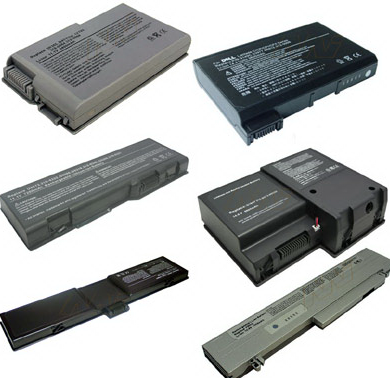
How To Deal With A Laptop Batteries run out quickly
How To Deal With A Laptop Batteries run out quickly - Electronic items such as cell phone, gadgets, laptops, netbooks, and others are very flexible and can be brought anywhere to suit our needs, such as electronic goods is using the battery. So it can be taken anywhere without having to plug in to the mains, the battery is fully record or previous charge.
Even so easily we follow the times are all-powerful, but there are some problems that arise due to the use of electronics. Especially for electronics that use batteries and one of them is a laptop. Very annoying when were using a laptop in an important job, but suddenly the laptop battery run out quickly, what more when we are again outside the home as in public places have Wi-Fi or Hot Spot areas such as malls, hospitals, homes eating, or the others. Indeed, in places like that there is no electricity, but if you are always ready to bring the charger.
The cause of laptop battery life.
One example is the use or while operating a laptop in a long time and also did charge laptop irregular. Batteries are used for many kinds laptop, durable or perishable matter dependent users in operating the laptop.
How To Overcome And Restore The Laptop Battery life :
- Refrigerator or freezer, If you do not have a refrigerator or freezer, you can use the refrigerator neighbors.
- Plastic wrapping, You can use plastic wrap ice thick enough plastic or other, as it does not leak.
- Strap, We will use this rope to tie up the plastic, use a rubber strap or plastic that is easy to tie. Do not use rope, itll actually too big and was not able to bind to the plastic.
- Batteries are experiencing Drop, Remove the battery from the laptop ngedrop, tips and tricks I recommend this only for the battery actually has experienced a drop or in a state of total disrepair.
How to restore laptop battery quickly drains:
- Insert the laptop battery into the plastic and wrap tightly with a rope tightly that you prepared earlier. With a record not to get plastic parts can later conceded that leaked water ice.
- If the laptop battery is wrapped tightly in plastic, and then enter into a freezer refrigerator or freezer.
- Allow the battery stored in the freezer or fridge for a full day or overnight. For other tips to make it more mantab be on leave for one to three days.
- After doing the three steps above, please remove the laptop battery is still tightly wrapped in plastic.
- Remove the laptop batteries from the plastic wrap, then let stand at normal temperature. For other tips on the internet there is an advocate for basking in the sun, but this suggestion I do not recommend it for you.
- If the condition of the laptop battery is back to normal temperature was not as cold or when you first remove it from the freezer on, please put it back in the laptop.
- Once the battery is properly installed on the laptop, the laptop please do not in turn. This is to avoid fatal damage to the laptop battery.
- Please pal charge the laptop is off until the full 100%. There are other tips suggested charge the battery the laptop is off to eight hours or as a new battery when the charge first.
- Then do step charge the laptop battery is 100% full flavor. Please turn it on or restart your laptop. Is the laptop battery is back to normal, if the laptop battery there are still problems, please repeat the above steps with a different way and volume to successfully implementing the right composition.
My advice if you are buying a laptop battery should be original and match the series, the original laptop battery definitely guaranteed quality.
Wednesday, July 17, 2013
Samsung Galaxy Q Phone With Dual Flexible Screen And Can Folded
Samsung Galaxy Q - Phone With Dual Flexible Screen And Can Folded | Samsung Galaxy Q product latest re-release with dual flexible display that can be folded. Samsung synonymous with samrtphone android. But this time, Samsung will develop a flexible display technology so that the smartphone can be bent and folded. This phone uses a flexible material. One of the samsung phones that use the flexible display is a Samsung Galaxy Q.

Read more »
Mobile phones with a screen that can be folded is something interesting and Samsung Galaxy Q could be a mobile phone with dual Super AMOLED HD screen that can be folded with a resolution of 1920 x 1080. Samsung Galaxy Q to use processor 1.7 Ghz Exynos 5250 dual-core processor, 2GB of RAM, an 8 megapixel rear camera and a 2 megapixel front facing camera and a 3500mAh capacity battery is quite large and the Samsung Galaxy Q is running Android 4.2.1 system with Jelly Bean.
Specifications of Samsung Galaxy Q GT-B9150
- Dual Super AMOLED HD Display (1920 × 1080)
- Processor 1.7 GHz dual-core Exynos 5250
- 2GB of RAM
- 8MP rear camera, 2MP front camera
- The battery capacity of 3500mAh
- Operating System Android 4.2.1 Jelly Bean
Friday, July 12, 2013
Sony Xperia V HP Android LTE With Super 13MP Camera
Sony Xperia V, HP Android LTE With Super 13MP Camera - Sony Xperia V is the latest cool phones that Sony introduced by Sony in some time ago by using a dual core 1.5 GHz processor and 1 GB RAM. Xperia V uses a 4.3-inch Reality Display technology that has a resolution of 720x 1280 pixels. Xperia V is equipped with a megapixel main camera is quite large, which is 13 MP. The operating system Android 4.0 Ice Cream Sandwich directly installed on the Sony Xperia V. Xperia V capable of running on 4G LTE network is the network that is currently only some regions in a country that is capable of running this network as well as only a handful of smartphones today are capable of running on 4G LTE networks.

Specifications Sony Xperia V :
Processor Qualcomm Krait S4 MSM8960 dual core 1.5 GHz
Andreno graphics processor unit 225
1GB RAM
8GB of internal memory
The operating system Android 4.0 (Ice Cream Sandwich)
A 4.3-inch 720x1280 pixel resolution
Battery 1750 mAh
13 MP camera, 0.3 MP front camera
FM Radio with RDS
Dimensions 129 x 65 x 10.7 mm
Weight 120 grams.
Subscribe to:
Posts (Atom)